Approve an SRE Orchestrator remediation
Goal
Review and approve — or reject — a remediation the SRE Orchestrator has queued for your tenant.
Before you start
- An open incident with a queued remediation plan. Incidents with nothing queued need no approval — see the SRE Orchestrator concept page for what makes an incident wait for a person at all.
- The
sre:approvepermission.
Steps
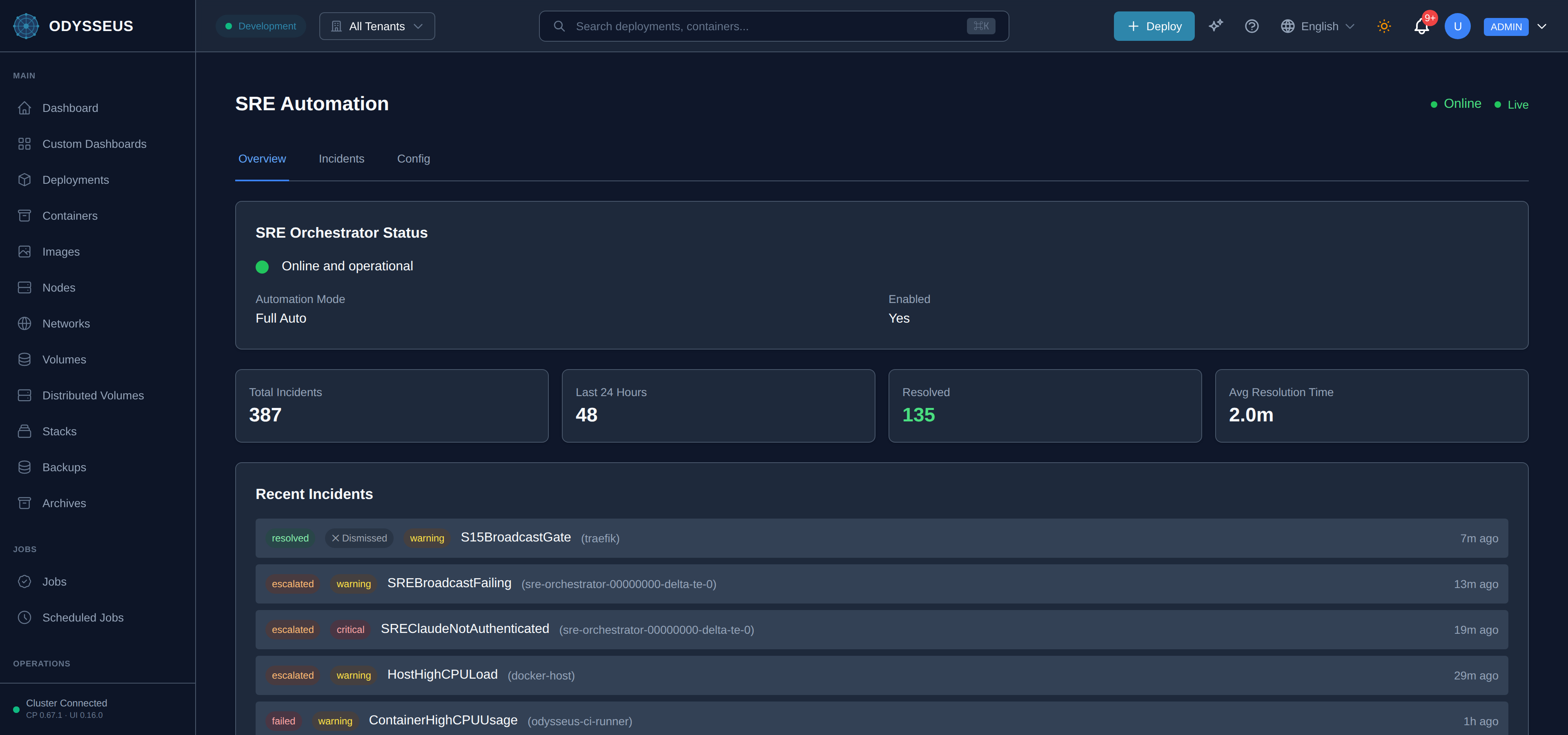
- Open SRE Automation in the sidebar (Operations section).
- Select the incident from Recent Incidents.
- Read its Remediation Plan — the commands it proposes and each one’s Risk Level — and the safety guardrail that stopped it running unattended.
- Choose Approve to run the plan, or Reject to leave it for manual handling. Rejecting asks you to explain why, which is kept with the incident.
Verify
The incident’s status changes to reflect the remediation’s outcome, and the commands you approved appear under Commands Executed on the incident.
When it fails
Approve is not shown. You do not hold sre:approve on this tenant — ask your platform
operator for the role that carries it.
Approve does nothing. The incident has already been resolved or rejected; a resolved incident’s remediation cannot be re-run from this screen.
The remediation never appears queued at all. The orchestrator’s rollout phase does not yet allow this risk level to be proposed for approval — see the concept page for what the phases control. That is operator-set state, not something this guide can check for you.